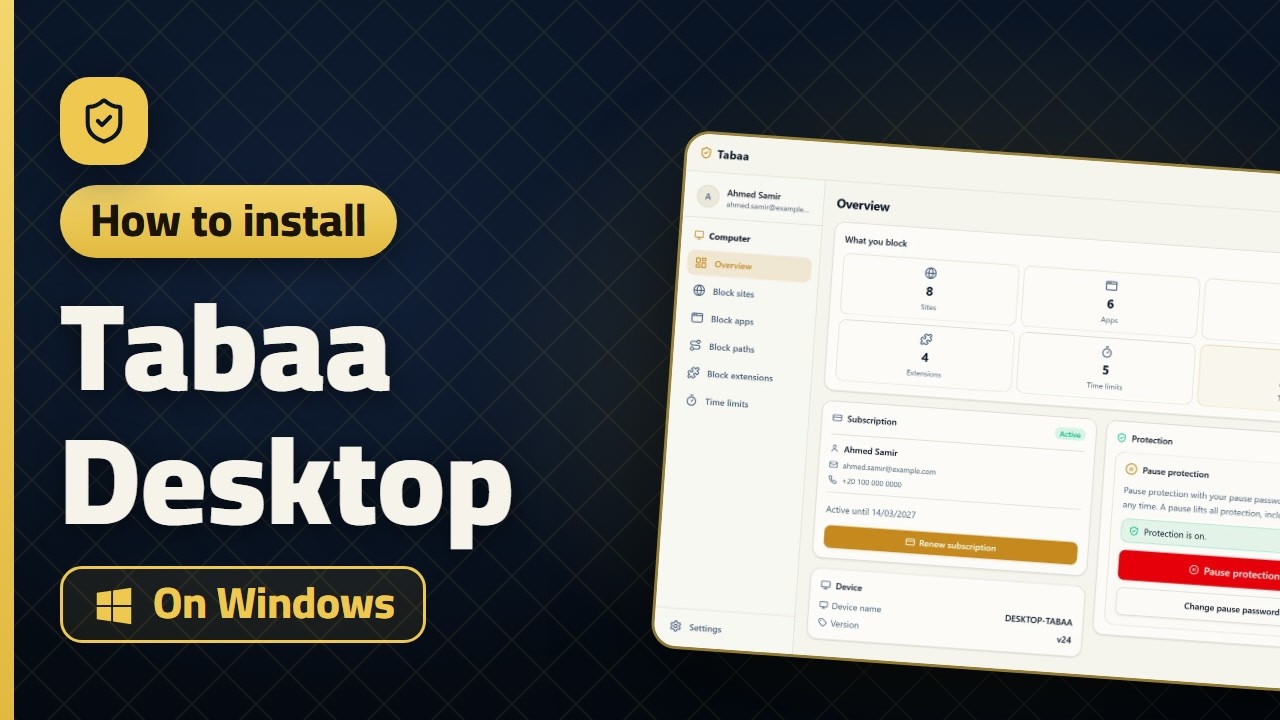
Full control of a Windows PC
Block apps and sites, cap how long they get used, and schedule the shutdown and the lock.
Requires Windows 10 or later (64-bit).
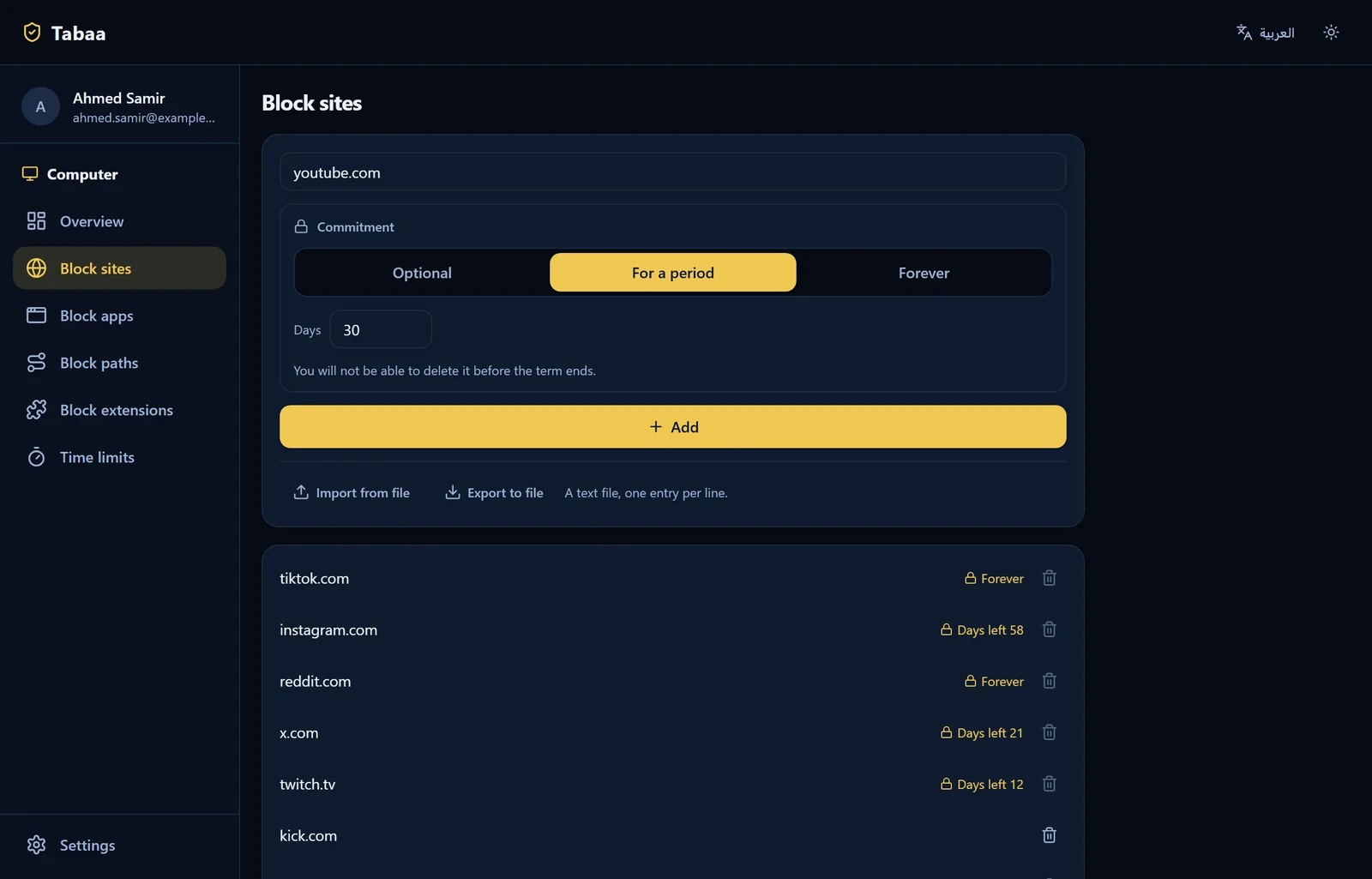
Block anything
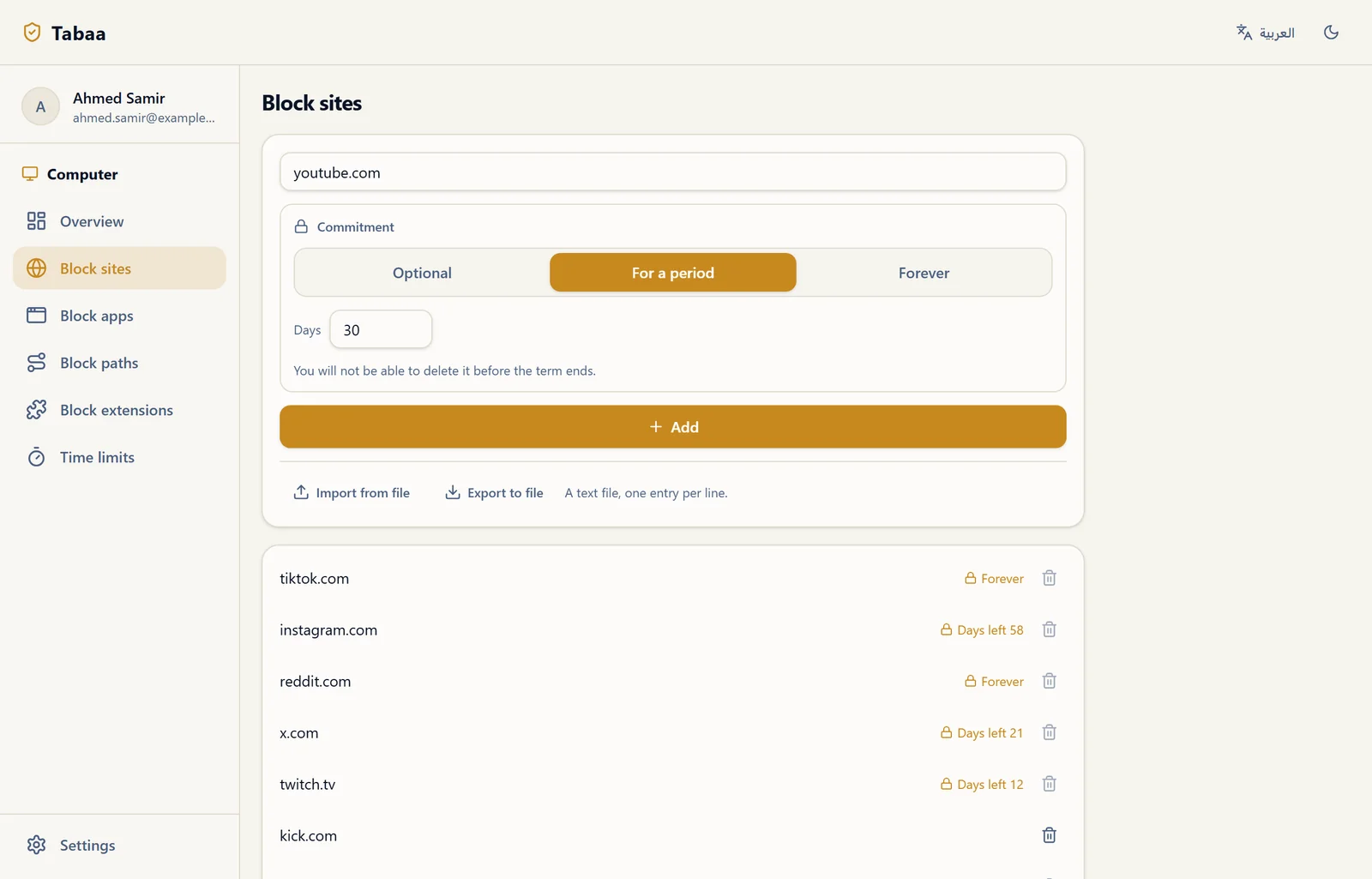
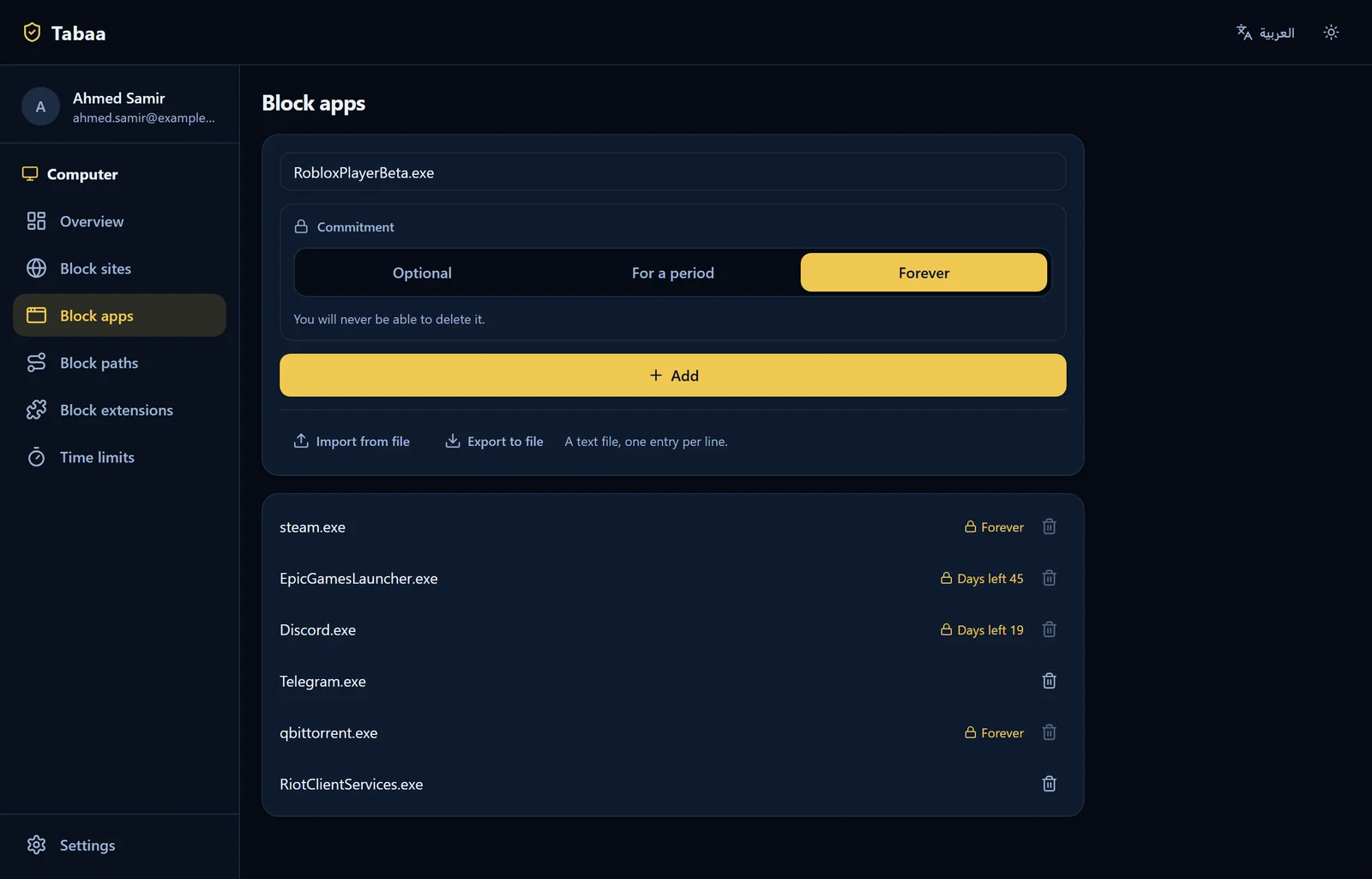
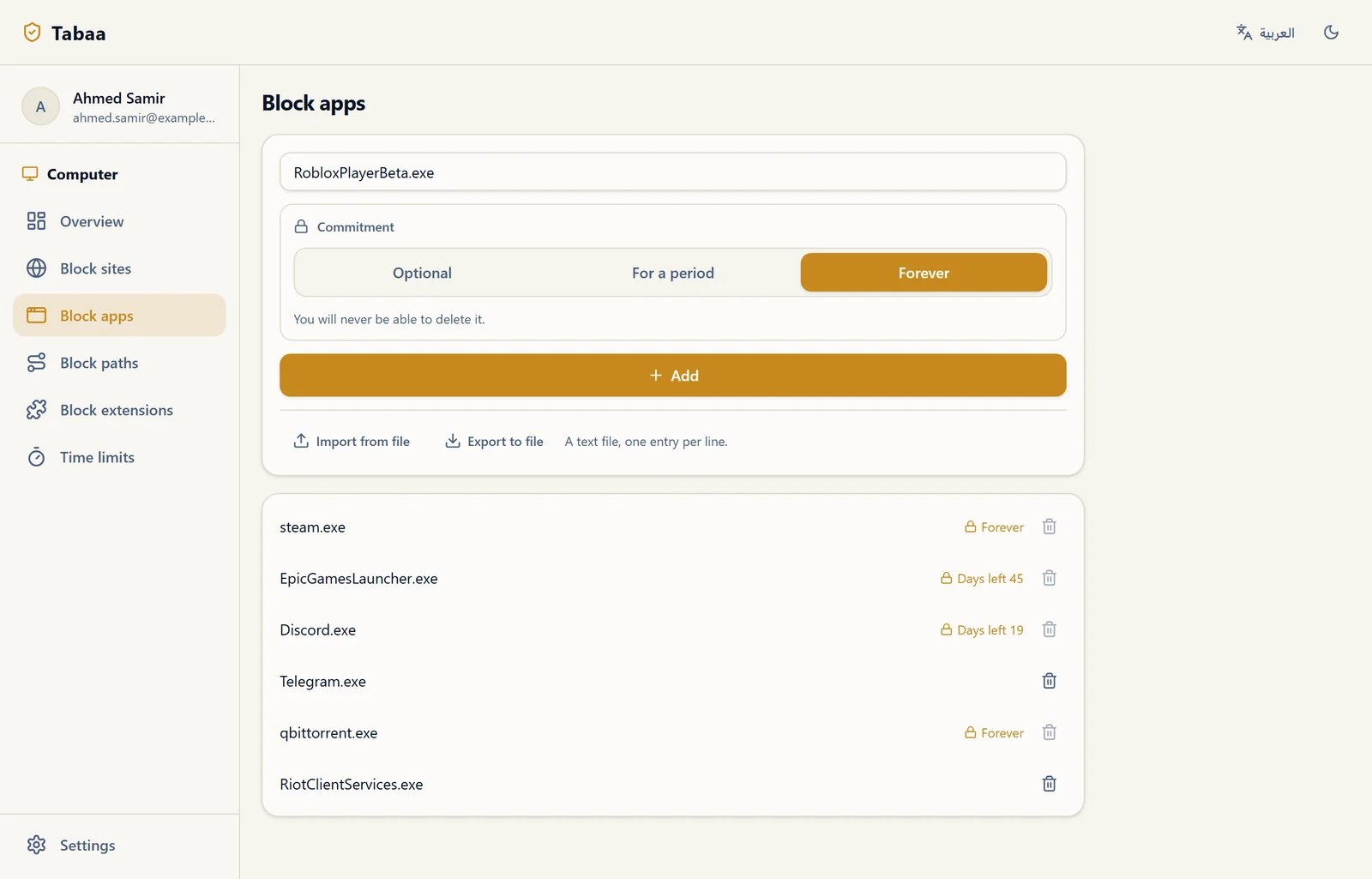
Block apps, processes, websites and folders - or by any keyword in the name, path or window title.
Time and usage limits
A daily limit for each app, plus an overall cap on the PC's screen time.
Scheduled shutdown and lock
Schedule shutdown, lock and bedtime, or send a one-shot command to shut down or lock now.
Remote control
The supervisor links the PC by the PC user's email, or the user enters the supervisor's email on the machine - no key at all - then the supervisor manages it from the web panel. A supervisor is optional.
Tabaa Desktop is not a blocking app the user opens and closes. It is a Windows service that starts before anyone signs in, its files are owned by the system account, and uninstalling it asks for the supervisor's password, which the server verifies at the moment of removal. And it keeps working in full with the internet cut off.
You cannot close it, because it is not an app
Any ordinary blocker on Windows runs inside the user's session: the user opens it, and the user can end it. Tabaa Desktop runs as a Windows service under the system account. It starts before anyone signs in, restarts itself within seconds if it is stopped or crashes, and a separate watchdog task checks on it every minute and revives it if it freezes.
The program's own files are owned by the system account, read-and-execute only for everyone else, including anyone holding administrator rights on Windows. Take ownership in order to delete them and ownership is taken back within about twenty seconds. The program is also registered with Microsoft Defender at install time, so antivirus never quarantines the protection engine and leaves the machine exposed without anyone noticing.
And we will say it plainly: Task Manager stays enabled on purpose. Blocking it is pointless friction, because the service comes back on its own anyway. Registry Editor, on the other hand, stays locked for as long as the subscription is active, so protection settings cannot be edited by hand.
Removal is possible - with the supervisor's password, not the user's decision
We will not tell you the program cannot be deleted. We will tell you who holds the decision to delete it. Uninstalling asks for the supervisor's password and checks it against the server at the very moment of removal, so the password is never stored on the machine in the first place. The second door is shut too: reinstalling, or installing over the current copy, asks for the same password, so protection cannot be lifted by laying a fresh build on top of it. And any failure at that moment, a dropped network or a server error, blocks the removal rather than allowing it.
If someone tries and gets the password wrong, the supervisor hears about it. If the password is actually accepted, the supervisor hears about that too, that protection was removed, so a silent machine is never mistaken for a switched-off one. And if the alert turns out to be false, it clears itself the moment the machine reconnects.
It works with the internet cut off
Enforcement on the machine reads the policy file it has saved, not the connection. Pull the plug entirely: blocked programs stay blocked, time limits keep counting, and bedtime locks the machine on schedule. The connection is the road changes travel down, not the condition the rules run on. Emptying the program's files or corrupting them disables nothing and opens no door to removal.
Block any program five ways, not by name alone
A single rule can match a program by its name, by its exact location on disk, by a whole folder and everything in it, by a word in its window title, or by any word in its name, its path or its launch command. That means you can block a game wherever it gets reinstalled, or block everything launched out of the Downloads folder, without knowing its name in advance. A blocked program closes within about a second and a half of opening, every single time it is opened.
Blocking a folder does more than stop what is inside it from running: it locks the folder itself, so it cannot be opened or browsed. Delete the rule and access returns immediately. Core Windows folders are never locked this way. And a rule written by mistake cannot break Windows or stop the protection: critical system processes and Tabaa's own engine cannot be killed by a rule. What the supervisor types stays text to be matched inside the program, never a command run on the machine.
Time limits on a clock that cannot be faked
The oldest trick against any time tool is changing the machine's clock. Here that door is shut: time advances on a counter that never runs backwards, and its trusted reference is the timestamp on our own server's replies. Moving the clock forward buys no extra minutes and does not jump past bedtime, and moving it back does not reopen a day whose limit is spent or erase the minutes already used. On top of that clock, the limits run:
- A daily per-program limit in minutes, counted from the time the program was actually in front of you rather than sitting in the background. When it runs out, the program does not stay open until tomorrow.
- A daily screen-time cap across the whole machine. When it is reached, the machine locks.
- A bedtime window that crosses midnight - ten at night to six in the morning, say - locks the machine for the whole window, and signing back in locks it again.
- A scheduled daily shutdown at a time you choose, with a one-minute warning first so no open work is lost.
- Screen time is counted from the moment the machine was genuinely switched on that day, not from a stored boot time, so the report never shows nineteen hours on a machine that was asleep.
Filtering on three layers, not one
Changing DNS by hand, installing a different browser, or using encrypted DNS: those are the three usual ways out of any filtering, which is why the filtering is applied at three levels at once.
- Inside the browsers: encrypted DNS is pinned to our resolver in Chrome, Edge, Brave, Vivaldi, Chromium and Yandex, and locked in Firefox. Alongside it, SafeSearch is enforced across every Chromium browser and cannot be switched off from inside the browser.
- In the network settings: the filtering addresses are set on every network adapter, so they cover everything that is not a browser at all.
- In the Windows firewall: every DNS resolver other than ours is blocked - port 53, port 853, and 23 public encrypted DNS services on port 443.
Site lists are pushed as enterprise policy inside the browser itself, not as a trick the user can undo, and they accept an allowlist that opens a handful of sites and closes everything else. VPN and proxy programs are closed the moment they start - seventy process names, among them NordVPN, ExpressVPN, ProtonVPN, WireGuard, OpenVPN, Surfshark, Psiphon, Shadowsocks, V2Ray, Clash, ngrok and Tor - the virtual network adapters they create are disabled, and around 117 VPN and proxy extensions are barred from installing in the browser in the first place.
And in full honesty: if the filtering service itself goes down for more than thirty seconds, the firewall block is deliberately released so the machine is not left with no internet, and the block returns the instant the service responds. Browsing in that window is unfiltered. We chose it because a machine with no internet is a bigger problem than a minute without filtering, and we would rather you heard that from us than discovered it for yourself.
Block part of a site, not the whole site
DNS filtering refuses a whole domain name, and cannot tell YouTube apart from the Shorts section inside it. The Tabaa Web Guard extension does exactly that: it installs into Chrome and Edge by Windows policy, so it cannot be removed from the extensions page, and it reads its rules from the protection engine on the machine itself, with no separate settings and no separate door. It blocks Shorts and leaves YouTube usable, blocks Reels and leaves Instagram usable, and it works inside embedded frames, so the player is replaced inside whatever page embedded it. One practical note: the extension only appears after you close the browser and open it once.
Commands land in ten seconds, and requests come back the other way
From the supervisor panel: lock the machine now, sign the user out of their session, shut the machine down, force a timed break, or grant extra minutes. The command runs on the machine within about ten seconds, even if the Tabaa window is closed.
The other direction matters just as much. When a limit runs out, the person using the machine can ask for extra time or a temporary unblock and give a reason, and the supervisor can grant less than was asked for. The supervisor can also open specific sections - blocking, or the schedule, or the limits, or the sites - for the user to propose their own changes there, where nothing takes effect until the supervisor approves, and the user can withdraw a request they no longer want. That turns the rules into something to be discussed rather than something to be worked around.
The same program for people who supervise themselves
Tabaa Desktop is not only for children. An adult with no supervisor writes their own plans: block lists, a daily minute budget per program, and a schedule of their own. And when a supervisor does exist, your personal plan adds restrictions on top of theirs and lifts none of them: bedtime windows combine, and the stricter limit is the one that applies.
You can also lock a plan behind a password you impose on yourself, so a moment's impulse cannot switch it off. And we will say it as it is: that lock is a commitment device, a real obstacle in your own way, not protection against someone holding full administrator rights on the machine. If you want more than that, your supervisor can set your plan's password from their own panel so you cannot open it, and the password becomes a one-way fingerprint on your machine that is never stored with us.
Focus sessions come with it: you work, then you rest, then you go again. During work rounds the plan you chose is enforced even if it is switched off for the rest of the day, and at break time a full screen covers every connected display, with the timer running on that same unfakeable clock. The break screen closes when you decide: a nudge, not a cage. Next to the timer there is a short task list. And a plan saves to a file and imports onto another machine, so you never build the same setup twice.
Who supervises the machine?
Linking works both ways: the machine asks for a supervisor by their email, or the supervisor asks for the machine by its owner's email and the owner approves on their own screen. Anyone who types an email they do not own learns nothing from the reply, because we neither confirm nor deny that an account exists. There are no licence keys anywhere in the product: linking is by email, and having a supervisor is optional to begin with.
And if there is nobody around you that you trust with this particular thing, you can hand supervision of the machine to the Tabaa team in one click - and after that you cannot take it back from this machine, which is exactly the point. The detail is on the Tabaa for adults page.
Ready on day one, and a report every week
The machine starts with a ready-made list of blocked sites and programs, so there is nothing to configure on the first day. The default list holds 44 Windows programs, 13 of them Android emulators, because an allowlist on the phone is worth nothing if the same app opens inside an emulator on the laptop. And a supervisor can lift any single entry from the default list for their own machine, without that touching anyone else.
The filtering list arrives from the server and updates itself, and if the file is lost or damaged the built-in copy takes over, so the machine is never left with no blocking. The weekly report shows the supervisor seven days: how long the machine ran each day, and which programs took the most time.
And what if the subscription ends?
The machine is not locked and not held hostage. The supervisor's rules stop applying, and the program stops defending its own files so the machine can be cleaned up, and pornography filtering stays on exactly as it was. And when the program is removed with the supervisor's permission, it takes away everything it put on the machine: the service, the network settings, the firewall rules, the browser policies, the folder locks, and its own files - and the machine goes back to how it was, with its internet working.
Summary: what happens on each attempt?
| Attempt | What happens | Mechanism |
|---|---|---|
| Ending the program from Task Manager | It is back within seconds | A Windows service that restarts itself, and a watchdog task that checks it every minute |
| Deleting the program's files | They do not delete | Owned by the system account, read-only even for the machine's administrator, and ownership is restored every twenty seconds |
| Emptying or corrupting the licence files | Protection continues | Enforcement does not depend on licence data being present, and the removal door stays shut |
| Uninstalling | It stops | The supervisor's password is verified by the server, and any failure blocks the removal |
| Installing a new build over the program | It stops | The same password is required on reinstall |
| Moving the machine's clock forward or back | The limits do not change | A forward-only clock, referenced to the timestamps on our server's replies |
| Changing DNS by hand or installing another browser | Filtering continues | A setting on every network adapter, and a firewall that blocks every resolver but ours |
| Running a VPN or a proxy | It closes and its adapter is disabled | Seventy process names, plus disabling the virtual network adapters |
| Installing a VPN extension in the browser | It does not install | About 117 extension IDs barred by browser policy |
| Cutting the internet | Everything keeps running | Enforcement reads the policy saved on the machine |
How to subscribe, and what it costs
The program runs on Windows 10 or later (64-bit). The subscription is 100 EGP a month or 1,000 EGP a year in the launch offer, down from 200 and 2,000. If you want the phone and the PC together, the combined subscription is 300 EGP a month or 3,000 EGP a year. The full detail is on the pricing page.
- Download the program and install it on Windows.
- Open the program and activate it with your email from inside it.
- Pay from inside the program - no key, and no supervisor unless you want one.
If you would rather have a human walk you through it, message us on WhatsApp at +201507966165 and we will take it step by step with you.
And what about the phone?
The computer is no small detail here: Google states in its own documentation that iPhone and iPad devices, and computers other than Chromebooks, cannot be supervised with Google Family Link. Anyone who blocks on the phone alone leaves the widest screen in the house wide open. Tabaa on the phone is a separate subscription, running with Device Owner rights, and both devices are managed from one supervisor account and from the supervisor app, in Arabic.
Read also why DNS and VPN blocking is not enough and Tabaa compared with Google Family Link, then start from the install page.
Frequently asked questions
- Can I close the program from Task Manager?
- No. Tabaa Desktop is not an app running inside your session, it is a Windows service under the system account that starts before anyone signs in. If it is stopped or crashes it restarts itself within seconds, and a separate watchdog task checks on it every minute and revives it if it freezes. Task Manager itself stays enabled on purpose, because blocking it is pointless friction while the service comes back on its own anyway.
- How do I remove the program?
- Removal is possible, but the key sits with the supervisor, not with the person using the machine. Uninstalling asks for the supervisor's password and the server verifies it at the very moment of removal, so the password is never stored on the machine. Installing over the current copy asks for the same password. Any failure at that moment, a dropped network or a server error, blocks the removal rather than allowing it, and the supervisor is told either way.
- Does it work with the internet cut off?
- Yes, completely. Enforcement on the machine reads the policy file it has saved, not the connection. Pull the plug entirely: blocked programs stay blocked, time limits keep counting, and bedtime locks the machine on schedule. The connection is the road changes travel down, not the condition the rules run on. Emptying the program's files or corrupting them disables nothing and opens no door to removal.
- If I change the machine's clock, do I get more time?
- No. Time advances on a counter that never runs backwards, and its trusted reference is the timestamp on our own server's replies. Moving the clock forward buys no extra minutes and does not jump past bedtime, and moving it back does not reopen a day whose limit is spent or erase the minutes already used. Screen time is counted from the moment the machine was genuinely switched on that day, not from a stored boot time.
- Is it any use to an adult with no supervisor?
- Yes, and a supervisor is optional to begin with. An adult writes their own plans: block lists, a daily minute budget per program, a schedule of their own, and focus sessions alongside. When a supervisor does exist, your plan adds restrictions on top of theirs and lifts none of them. You can lock your plan behind a password, but that is a commitment device against your own impulses, not protection against someone holding full administrator rights on the machine.
- And what if the subscription ends?
- The machine is not locked and not held hostage. The supervisor's rules stop applying, and the program stops defending its own files so the machine can be cleaned up, while pornography filtering stays on exactly as it was. When the program is removed with the supervisor's permission, it takes away everything it put on the machine: the service, the network settings, the firewall rules, the browser policies, the folder locks, and its own files.